- AI Platforms & Assistants
Create smarter surveys and analyze responses instantly using Gemini AI
When you purchase through links on our site, we may earn an affiliate commission. Here’s how it works.
 (Image credit: Google)
Jump To:
(Image credit: Google)
Jump To:
- Gemini plans and pricing
- How to use Gemini to create Google Forms
- Analyzing survey responses
- Analysis with Google Sheets
- Limitations of using Gemini in Google Forms
- Final thoughts: Is Gemini in Google Forms worth It?
- Copy link
- X
- Threads
Creating a survey form in Google Forms can be complicated, even if you have plenty of experience with it. The challengers aren’t just technical – you also have to brainstorm the right questions and structure the form in a way that feels natural and optimized for data collection. Then there’s the challenge of analyzing responses, which is both the most important and the most difficult part of the process.
Thanks to Gemini’s integration in Google Forms, you can build survey forms in just a few seconds and by using a simple, natural-language prompt. While Google Forms is a popular data collection tool, its built-in insight templates are fairly limited. Gemini bridges this gap as well – with quick summaries and deeper insights into survey responses, including description questions.
Plus, by linking your form responses to Google Sheets, you can use the Gemini side panel to uncover hidden trends, in-depth statistics, and actionable insights.
Latest Videos FromWatch full video here:
In this article, we’ll tell you everything you need to know about using Gemini in Google Forms. We’ll build a sample survey and see, in real time, how Gemini can be turned into the perfect research assistant – one that not only designs surveys but also analyzes them for fresh perspectives.
Gemini plans and pricing
Although Gemini in Google Forms is a productive addition, the feature isn’t free. If you’re an individual, you’ll need at least the $1.99/month Google One AI Premium plan. If you’re a business, consider getting the Standard Google Workspace plan, priced at $14/user/month. Note that the $7 plan doesn’t offer Gemini integrations in Workspace tools.
You may like-
 Gemini can now generate files in Google Docs, PDF, Word with just a prompt
-
 'We are reimagining how people create content': Your Google Workspace apps are getting a major Gemini-powered upgrade
-
 Google just revealed Gemini Intelligence for Android — and it looks great
Once you have the required subscription, you’ll be able to use the AI chatbot to build survey forms in a jiffy.
How to use Gemini to create Google Forms
Let’s say you’ve launched a coffee-flavored protein powder three months ago and now want to run a survey among actual buyers to understand how the product has been performing and if and where there’s room for improvement.
Are you a pro? Subscribe to our newsletterContact me with news and offers from other Future brandsReceive email from us on behalf of our trusted partners or sponsorsBy submitting your information you agree to the Terms & Conditions and Privacy Policy and are aged 16 or over.Usually, you’d have to go to your Google Forms account and manually curate each question and decide the form’s flow, which can take a lot of time – time you may not have when you’re trying to run a business. However, as long as you know what you want from your survey, all you really need is to enter a simple prompt into Gemini to create the form for you.
Step 1: Go to Google Forms and choose Blank Form. On the Gemini pop-up that appears, choose a pre-designed template or enter a custom prompt. Let’s select the latter.
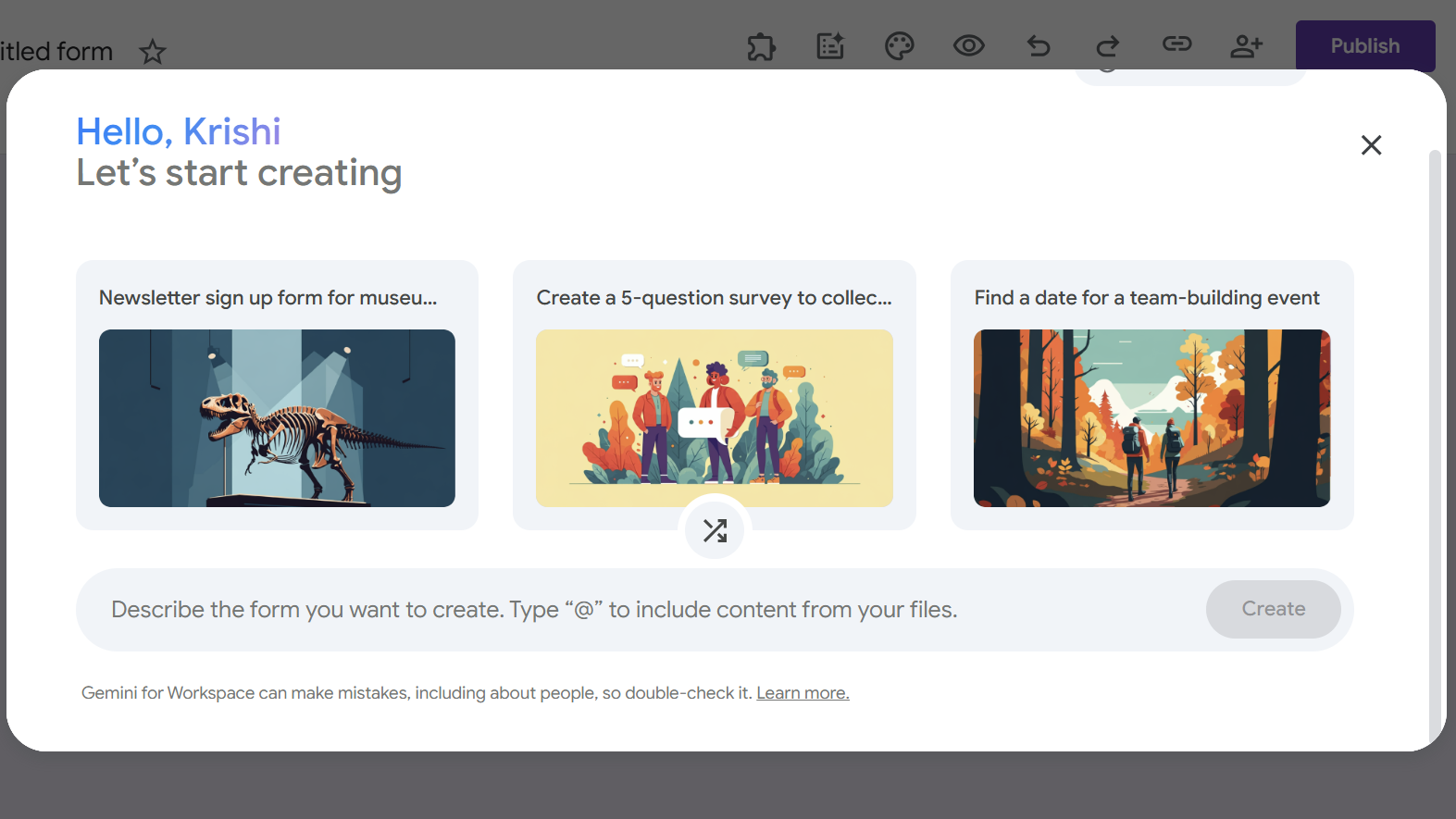
Step 2: Enter this prompt in the Gemini dialog box: “I want to create a 3-month post-launch survey of my new coffee-flavored protein powder. Create a survey asking users multiple-choice questions covering aspects like taste intensity, mixability, sweetness level, usage time (morning, afternoon, pre- or post-workout), digestion issues, and other relevant factors you can think of. Include an open-ended question at the end asking for suggestions from the user.”
What to read next-
 Gemini takes over Google at i/O 2026
-
 5 prompts for Gemini 3.5 Flash showcasing its full potential
-
 5 tips for Gemini Notebooks
Step 3: Once you’ve described in detail what you need, press Create. Gemini will build the form’s preview for you in seconds. Click Create form in the bottom-right to finish.
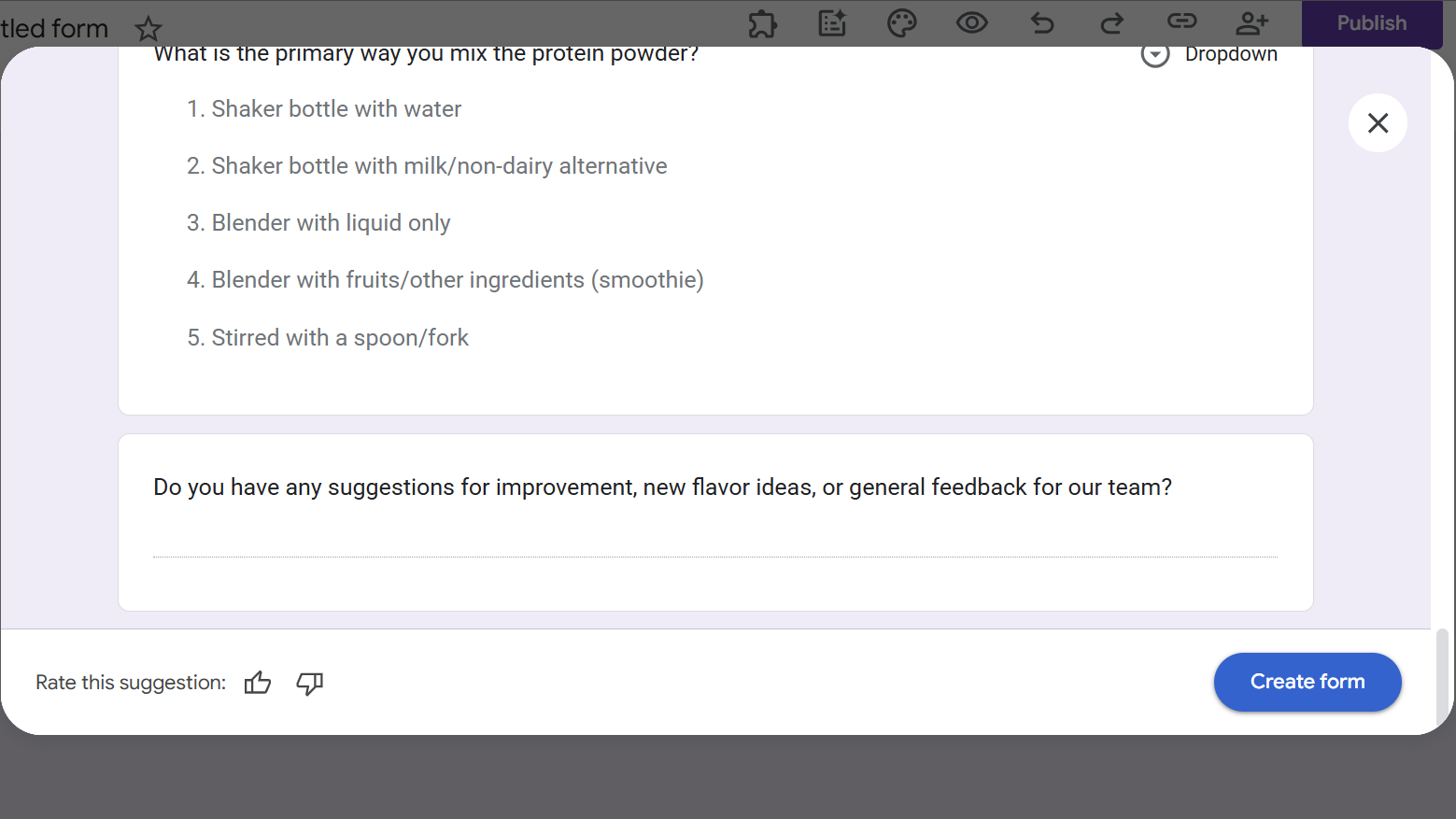
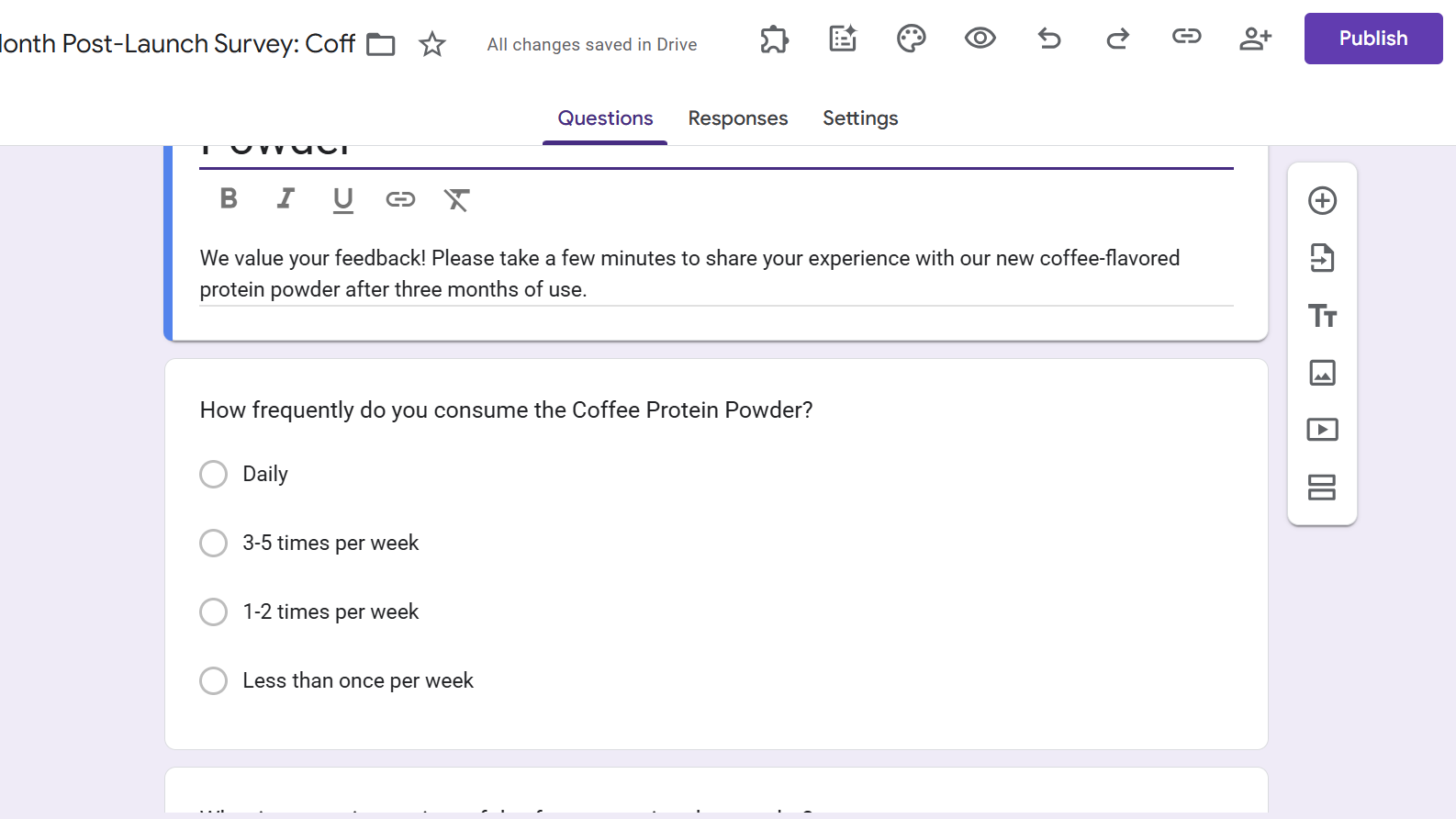
Step 4: Your Google survey form is now ready. You can click on any question to edit it or add images, text, or even a new section. Click Publish in the top-right corner and you’re done.
Analyzing survey responses
Once you’ve collected enough responses, you can use Gemini for detailed analysis, especially for descriptive questions. Sure, Google Forms is already pretty great when it comes to visual charts and graphs for multiple-choice questions.
However, with descriptive survey questions, you typically have to go through each response individually to gather insights. Gemini solves this problem through quick AI summarizations.
Click the Responses tab and scroll down to the descriptive question. Click on the Summarize responses button with the Gemini logo in front of it.
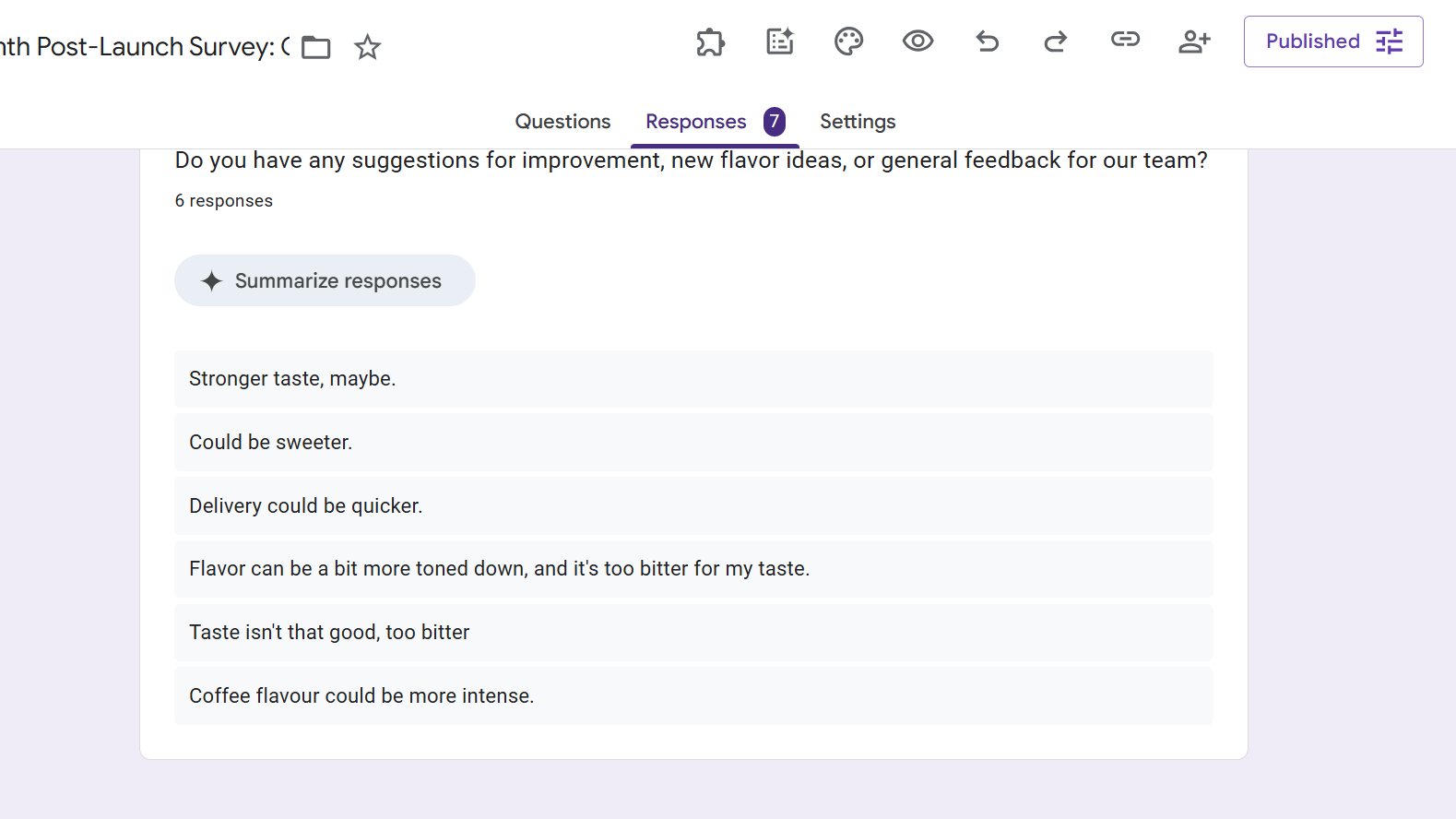
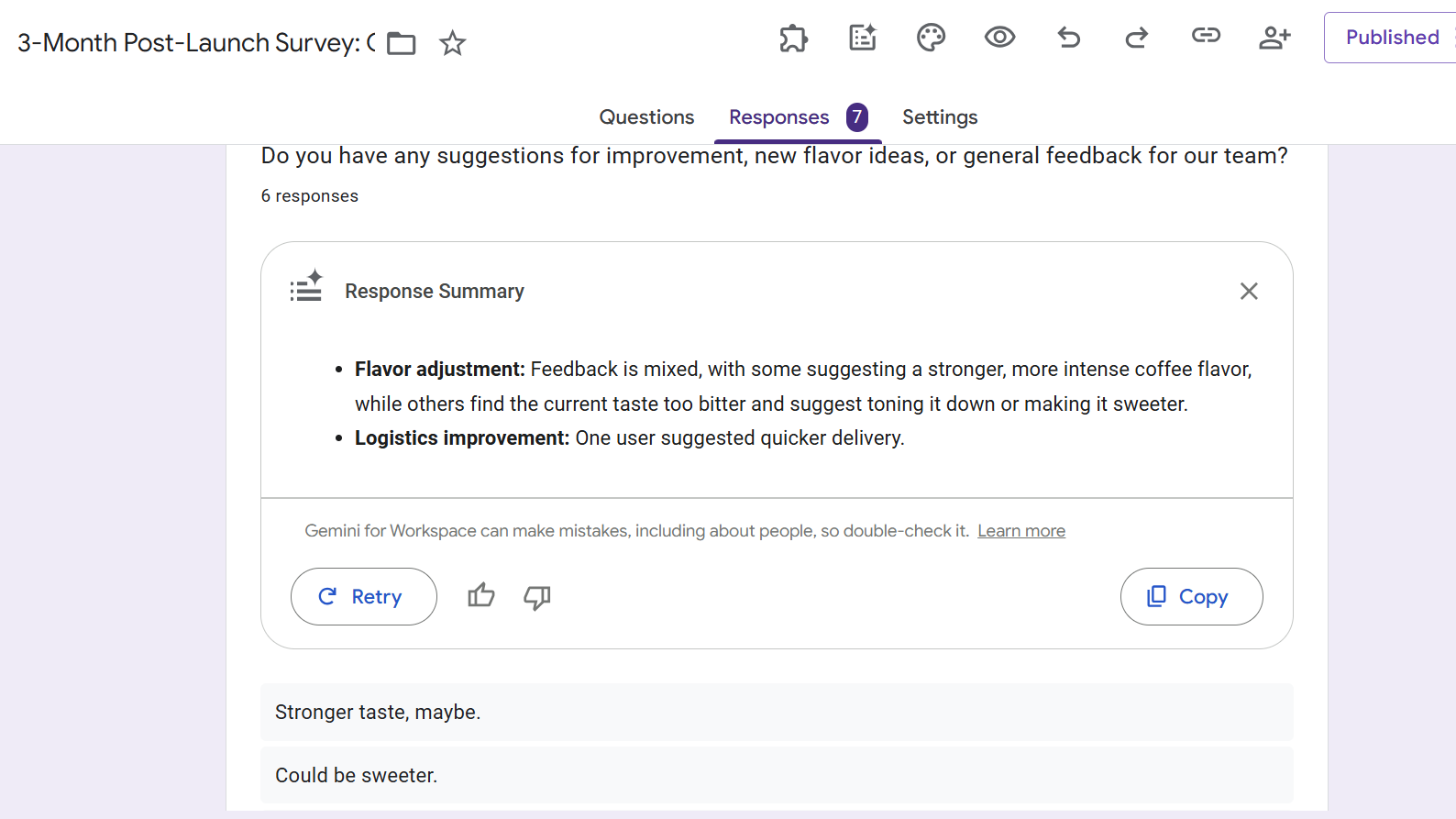
Gemini will quickly generate a bulleted summary of all responses, highlighting the common themes, frequently mentioned issues, and key suggestions. The AI groups similar suggestions together and can even separate positive and negative sentiments, helping you navigate hundreds of responses in very little time.
Analysis with Google Sheets
While Google has integrated Gemini with Forms, its functions remain pretty task-specific. You cannot have a conversation with the AI bot inside Google Forms, like you can do in Sheets or Docs. This is why the scope of analysis with Gemini in Forms is pretty limited.
However, there’s a slick workaround for this, which can help you harness the power of Gemini to its fullest extent. You can export all your form responses to Google Sheets and then use the Gemini side panel to draw more insights about your survey. Here’s how:
Step 1: Visit the Responses tab on your Google survey form and click the Link to Sheets button in the top-right corner.
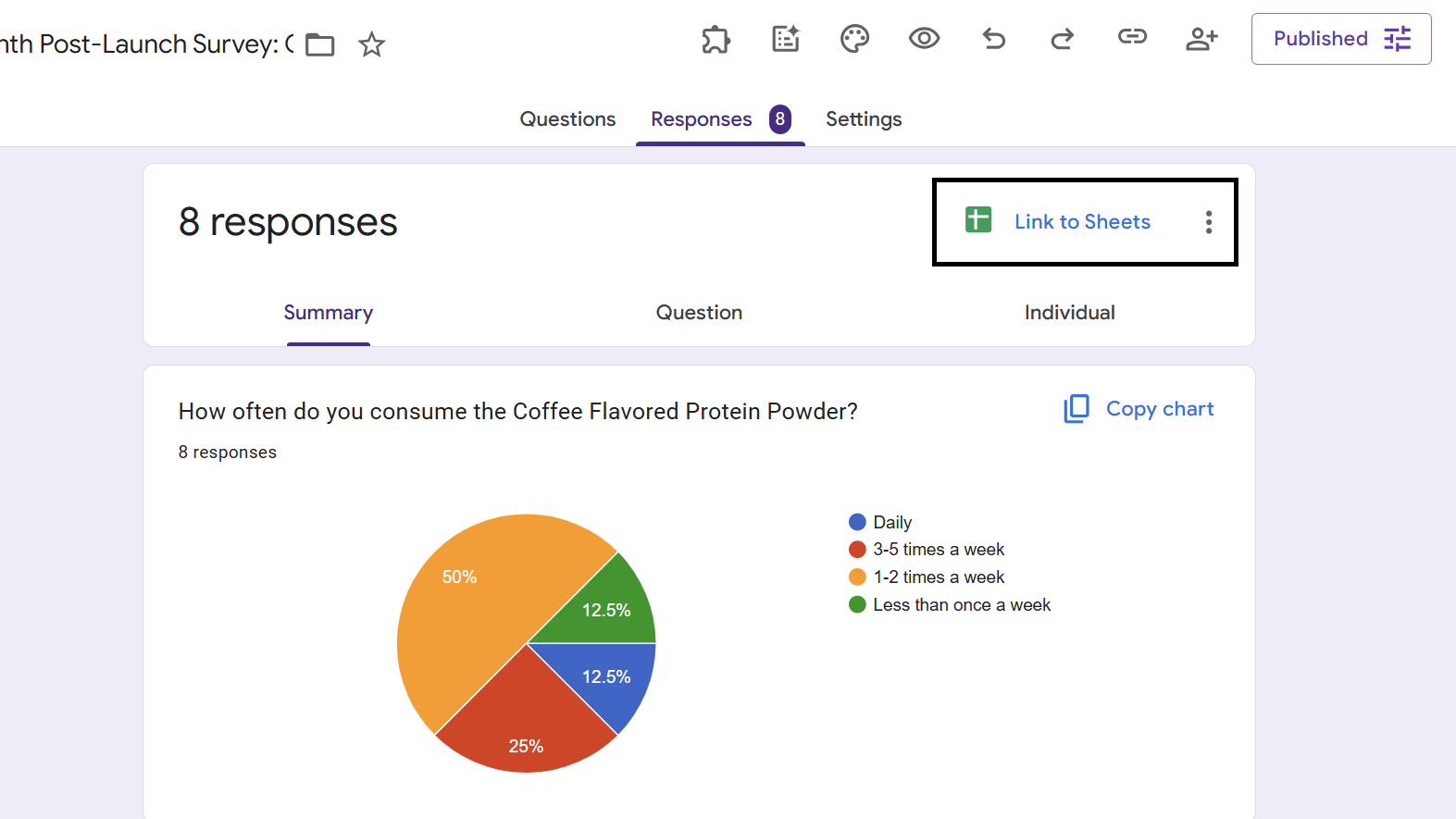
Step 2: You can create a new spreadsheet or choose an existing sheet to export the data to. Click Create once you’ve made a choice.
Step 3: A spreadsheet will open in a new tab with all the survey responses converted into a table. Every time a new response is recorded for the survey, a new row will be added to this table – because it’s directly linked to your Google Form.
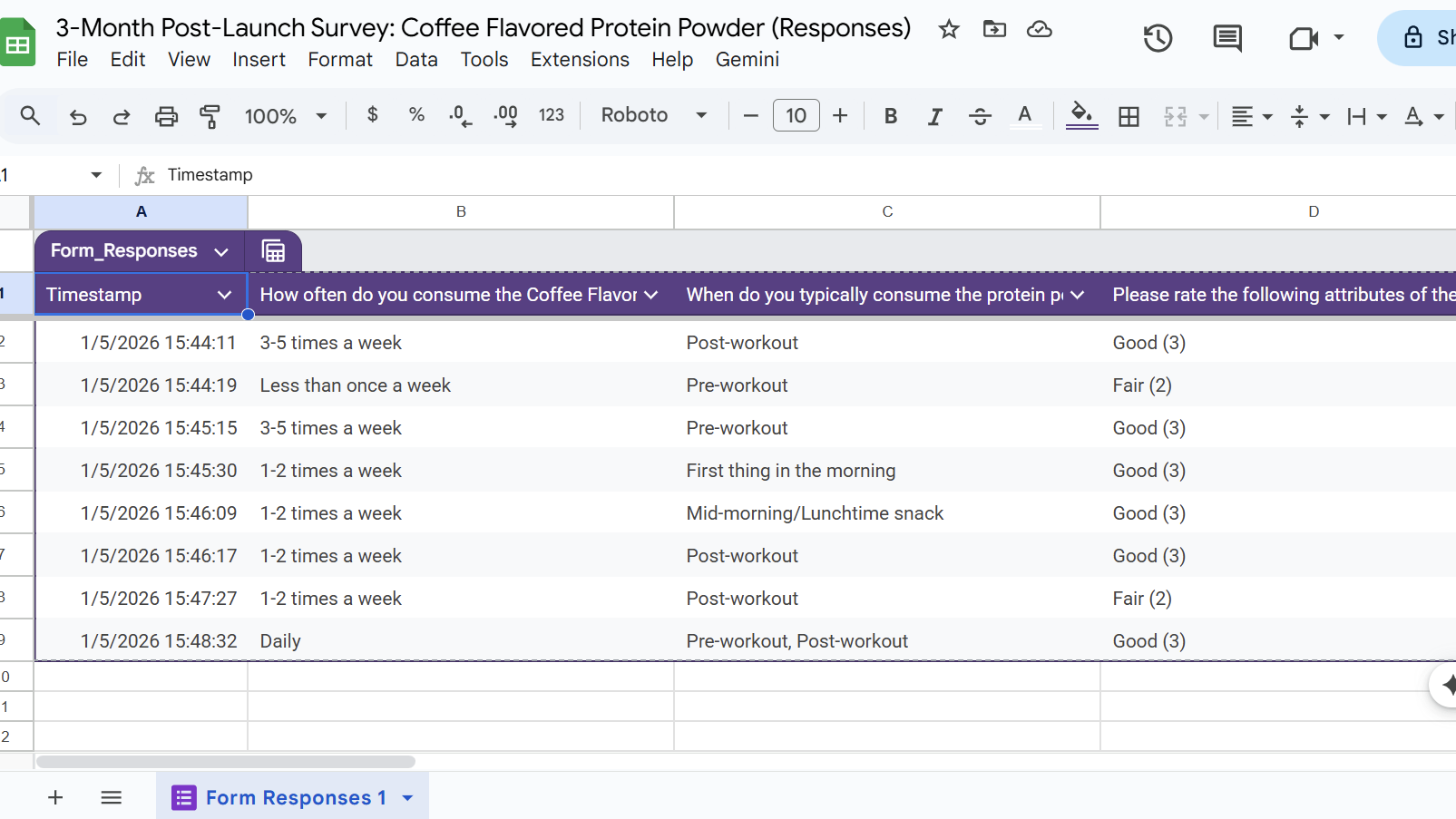
After converting the survey responses into a Google Sheet table, you can use Google Gemini’s side panel to dig out insights that go beyond Google Forms’ built-in vanilla analysis.
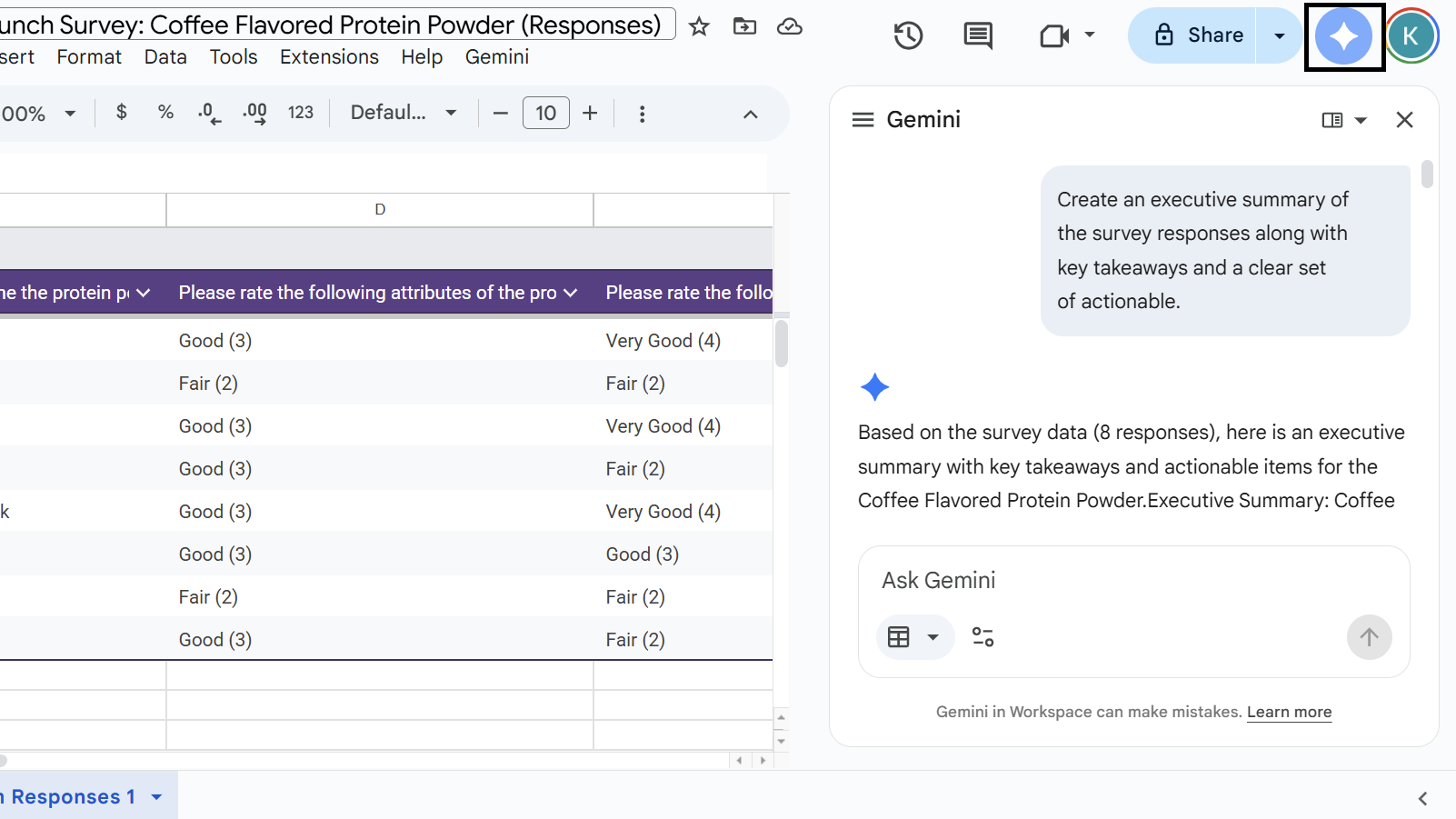
Click the Gemini button in the top-right corner of Sheets to open the side panel. Here, you can enter everyday-English, natural-language prompts for richer analysis. Here are some examples of how to leverage AI for deeper insights.
- Ask Gemini to create an executive summary of the survey responses, along with key takeaways and a clear set of actionable insights.
- Ask Gemini to point out the strengths and weaknesses of your product based on customer surveys.
- Find correlation between two or more survey questions, which are otherwise not easy to spot. For instance, you can ask Gemini if there’s any correlation between mixability and the mixing method. In our example, a clear pattern emerged where using a shaker with water resulted in low mixability scores. This insight was not detectable from the plain insights available on Google Forms.
- Identify the top three reasons why customers say they wouldn’t buy the product and suggest immediate fixes.
- Identify customers who gave the lowest ratings and write an apology follow-up email offering a 20% discount on their next purchase.
Of course, these are just a few examples of how you can use Gemini to dig deeper into survey data. The possibilities are truly endless. Say you’re using Google Forms for expense reimbursements in your business. Then, Gemini can help you categorize those expenses, identify spending patterns, find outliers, and prepare quick reports.
Limitations of using Gemini in Google Forms
Gemini in Google Forms is really good, but it’s not perfect. Here are a few limitations:
- It can help you build surveys from scratch, but it cannot handle stylistic edits like changing colors, adding text, or backgrounds. These are things you’ll still have to do yourself.
- Gemini’s analysis within Google Forms is limited to question-and-answer type responses – it can’t help you with deeper analysis beyond what Google Forms inherently offer.
- Whenever new responses are captured by the form, you’ll have to re-run the AI analysis in Google Sheets, as it doesn’t automatically update with new responses.
Final thoughts: Is Gemini in Google Forms worth It?
Short answer: yes. Gemini in Google Forms is worth it, as it cuts down on the time required to design goal-oriented surveys. Simply describe your survey to Gemini, including the intent and the questions you want to ask, and it will build you a ready-to-use form in just a few seconds.
You don’t have to spend time brainstorming the questions to include in your survey or decide how to structure them. Gemini automatically suggests questions based on your survey intent and arranges them into a logical flow. You can then edit or rejig the form as per your needs.
In addition to designing, you can leverage Gemini in Forms and Sheets to eke out hidden data patterns and trends – again, with simple human prompts. Overall, Gemini is a useful addition if you’re looking to crank up your productivity, or if you’re a non-tech savvy user who still doesn’t want to compromise their quality of work.
TOPICS Google AI Krishi ChowdharyKrishi covers buying guides and how-to's related to software, online tools, and tech products here at TechRadar. Over at Tom's Guide, he writes exclusively on VPN services. You can also find his work on Techopedia and The Tech Report. As a tech fanatic, Krishi also loves writing about the latest happenings in the world of cybersecurity, AI, and software.
View MoreYou must confirm your public display name before commenting
Please logout and then login again, you will then be prompted to enter your display name.
Logout Read more
Pro
Gemini can now generate files in Google Docs, PDF, Word with just a prompt
Pro
'We are reimagining how people create content': Your Google Workspace apps are getting a major Gemini-powered upgrade
Gemini
Google just revealed Gemini Intelligence for Android — and it looks great
AI Platforms & Assistants
Gemini takes over Google at i/O 2026
Gemini
5 prompts for Gemini 3.5 Flash showcasing its full potential
Gemini
5 tips for Gemini Notebooks
Latest in AI Platforms & Assistants
 AI Platforms & Assistants
Meta AI's recent hack is a wake-up call for anyone who puts their trust in AI systems
AI Platforms & Assistants
Meta AI's recent hack is a wake-up call for anyone who puts their trust in AI systems
 AI Platforms & Assistants
AIs like ChatGPT fall apart in the classic 'Stroop' psychological test
AI Platforms & Assistants
AIs like ChatGPT fall apart in the classic 'Stroop' psychological test
 Fitness Trackers
Samsung Galaxy Watch users are getting a completely redesigned, AI-first app for a 'personalized experience'
Fitness Trackers
Samsung Galaxy Watch users are getting a completely redesigned, AI-first app for a 'personalized experience'
 Tech
What to expect from Tim Cook's final WWDC — assuming he doesn't pull a Wolf of Wall Street
Tech
What to expect from Tim Cook's final WWDC — assuming he doesn't pull a Wolf of Wall Street
 Computing
A Californian city just became the first to permanently ban data centers
Computing
A Californian city just became the first to permanently ban data centers
 ChatGPT
I used ChatGPT to enhance my resume and job hunt
Latest in How Tos
ChatGPT
I used ChatGPT to enhance my resume and job hunt
Latest in How Tos
 How to Watch Sport
How to watch 2026 Premier League Darts Finals Night: Free Streams & Schedule
How to Watch Sport
How to watch 2026 Premier League Darts Finals Night: Free Streams & Schedule
 ChatGPT
Here’s the hidden method that finally works for deleting images in ChatGPT
ChatGPT
Here’s the hidden method that finally works for deleting images in ChatGPT
 Software
Google I/O 2026: how to watch and what to expect
Software
Google I/O 2026: how to watch and what to expect
 Android
Google's Android Show: start times and expected Android 17 updates
Android
Google's Android Show: start times and expected Android 17 updates
 Pro
7 mistakes your business could make when choosing a VoIP system
Pro
7 mistakes your business could make when choosing a VoIP system
 Pro
What exactly is an AI voice agent? And why does it matter in enterprise communication?
LATEST ARTICLES
Pro
What exactly is an AI voice agent? And why does it matter in enterprise communication?
LATEST ARTICLES- 1AIs like ChatGPT fall apart in the classic 'Stroop' psychological test
- 2Many US tech firms are turning to China's DeepSeek as the bill for homegrown AI bites – American AI companies could learn a thing or two
- 3OpenAI’s Codex helps discover HTTP/2 Bomb DoS attack that can nuke over 30GB of RAM within seconds, knocking web servers offline before they can react
- 4With GTA 6 Online, Rockstar has a chance to free players from its greatest vehicular mistake
- 5Building a SteamOS streaming PC is the best choice I've made in years