 Cheng Xin/Getty Images
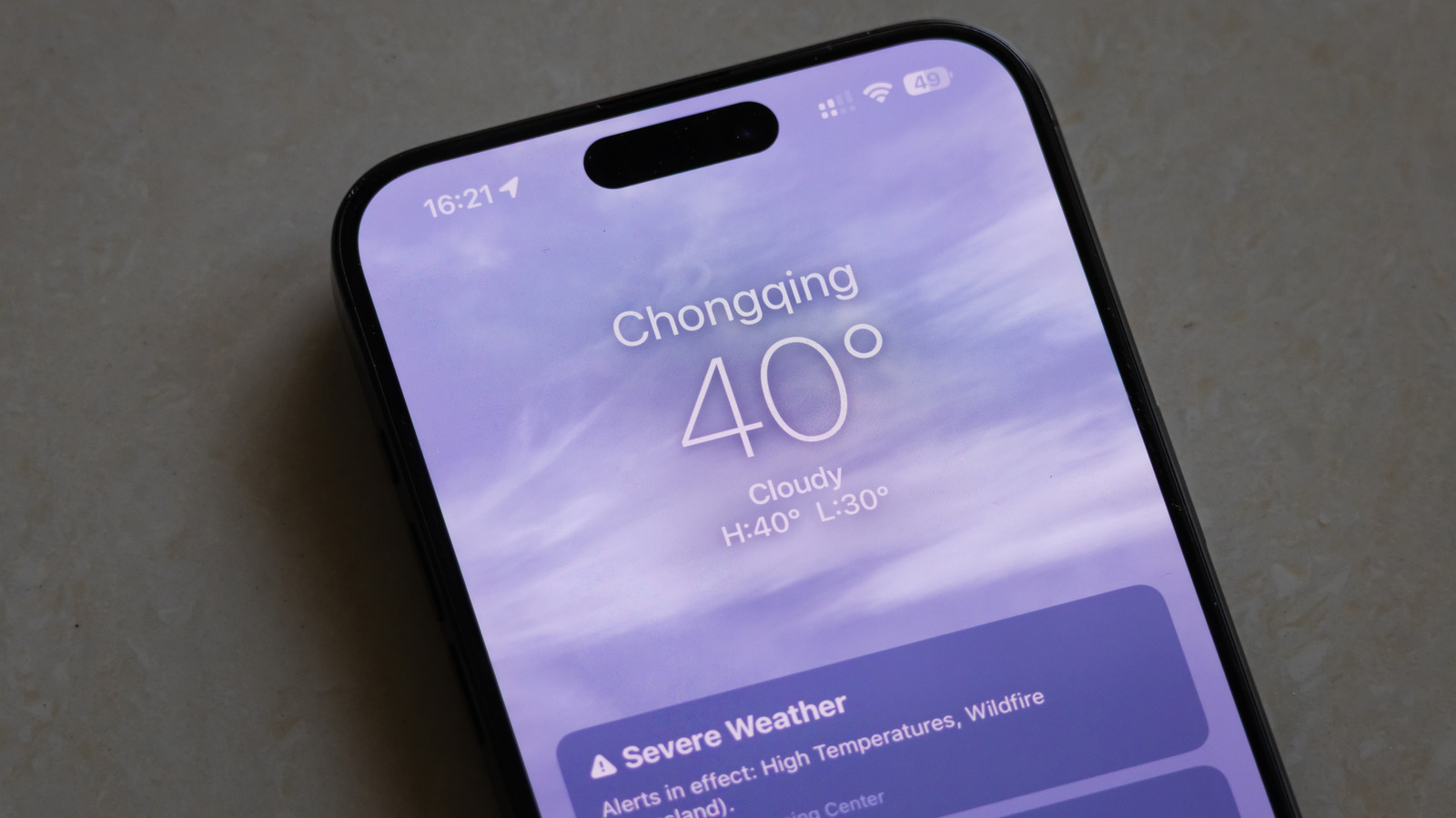
Ask for weather apps for iPhone, and you'll get dozens of recommendations. Some stand out with unique features you won't find elsewhere, like checking weather along your driving route. The problem is a lot of these include paid subscriptions for their best features, and there's one free app you already have that can probably do 99% of what you want: iPhone's Weather app. The weather app may not always have the best weather predictions, but it's shockingly good for being ad- and subscription-free software.
Being an Apple app, it looks very sleek, adhering to the brand's minimalistic interface, and — you would think — offers nothing substantial beyond that glossy exterior. You'd be wrong, as some of the best features of the iPhone Weather app are not immediately obvious.
Whether you're a long-time user of Apple's Weather app or someone who's barely touched it, these are the software's best-kept secrets, plus a couple of somewhat hidden extra functionalities. These recommendations assume that you're updated to the latest version of iOS.
Use widgets on your Home Screen and Today View page
 Jordan Wirth/SlashGear
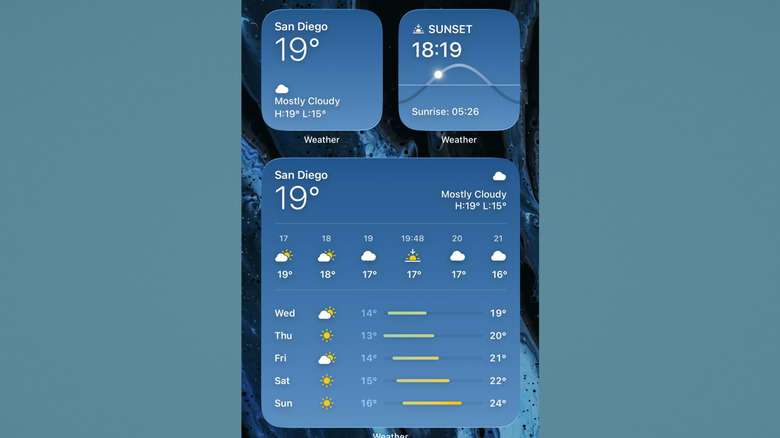
Perhaps the best way to use the Weather app is to never have to open it; That's the beauty of the Weather widget. To put a widget on the Home Screen and get at-a-glance forecasts, press and hold on an empty space on your Home Screen until the app icons start wiggling, then hit "Edit" in the top-left corner and choose "Add Widget." Search in the pop-up menu for "Weather." Most people would probably go for the 1x1 square that only shows a location's current temperature and a general forecast with highs and lows, but there's a lot more, including a 1x2 rectangle and massive 2x2 square with full-week forecasts, temperature ranges... the works. However, these take a full 1/3 or 2/3 of your screen.
Bear in mind that you can add additional weather locations for each individual widget by tapping it in wiggle mode and adding a location. For example, you could have one widget for home and another for your workplace. Conversely, you could add the weather app to a Smart Stack or custom-made widget stack, to bundle together multiple widgets into the space of a single 1x1 square.
If your Home Screen is getting a little crowded, then consider putting the weather widget in Today View. This is the side menu overlay you summon from Home Screen with a right swipe. It exists only for widgets, making it perfect for this purpose. I find this keeps the home screen a lot cleaner and more focused, since even the small 1x1 widget takes up the space of four app icons.
Check air quality
 Jordan Wirth/SlashGear
Air pollution is one of these threats that many don't take seriously enough. Fine particles produced by everyday city traffic and other factors pose a serious danger to respiratory health. Wearing a mask or switching on a quality air purifier on smoggy days should be taken more seriously. Luckily, the Apple Weather app includes air quality data, so you don't need to download a third-party app just to get this information on your phone.
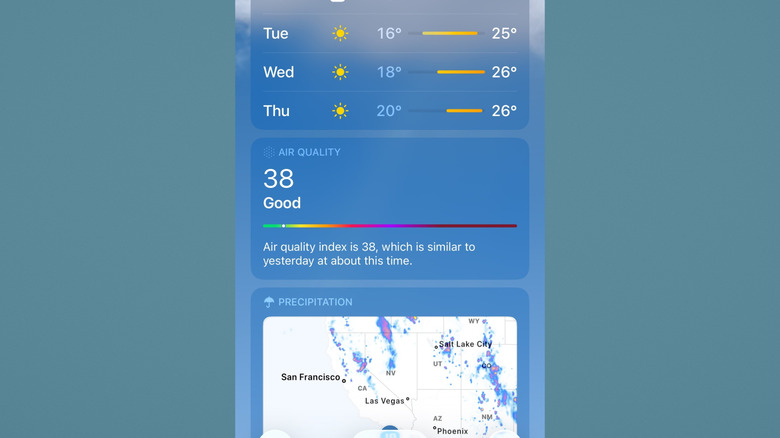
To find air quality data, select a location and scroll down to the Air Quality section. You can tap it for more information and see comparisons to the day before, potential health risks, the primary pollutants at play, and further details on additional particulate matter, in case that information is relevant to you. Otherwise, you can tap the map icon in the bottom left corner and see a full world map. Use this to see air quality in the general region surrounding your home, or compare it across locations.
The only downside is that iPhone currently does not have a way to show air quality from a widget. The fastest way we found was asking Siri for the air quality, but this is one of these things you shouldn't use a vocal assistant for, as it only provided the bare minimum info. For easier access, we'd recommend apps like IQAir AirVisual, which supports Home Screen widgets and is an amazing app besides.
Enable weather notifications
 Jordan Wirth/SlashGear
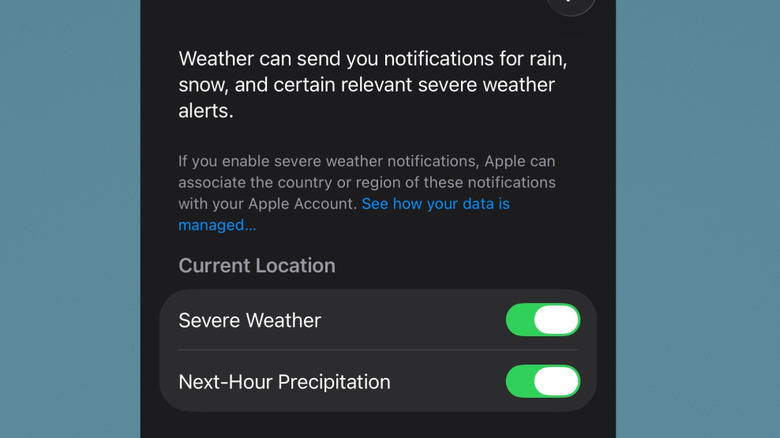
There's nothing worse than going out on a clear weather, only to get soaked by a sudden downpour later on because you didn't have an umbrella. Consider yourself lucky if you don't live in a place where weather can turn on a dime from sunny to rainy, without warning. Either way, it helps to have the iPhone Weather app notify you when the clouds are about to rejoin the rivers.
On the main location selector screen, press the three-dot button on the top right and choose "Notifications." You have two options: Severe Weather and Next-Hour Precipitation. Pretty self-explanatory, and probably the only weather notifications most people need. Note, you can change these granularly by enabling notifications for your current location and/or any other location you have added.
We should note that if you want a more aggressive alert for weather-related emergencies (like heavy rain leading to a flood), these are already enabled by default and make a loud noise regardless of notification settings. Go to Settings > Notifications and make sure "Emergency Alerts" is toggled on, just in case. Depending on where you live, these may be impossible to turn off.
See information on moon phases, sunrises, and sunsets
 Jordan Wirth/SlashGear
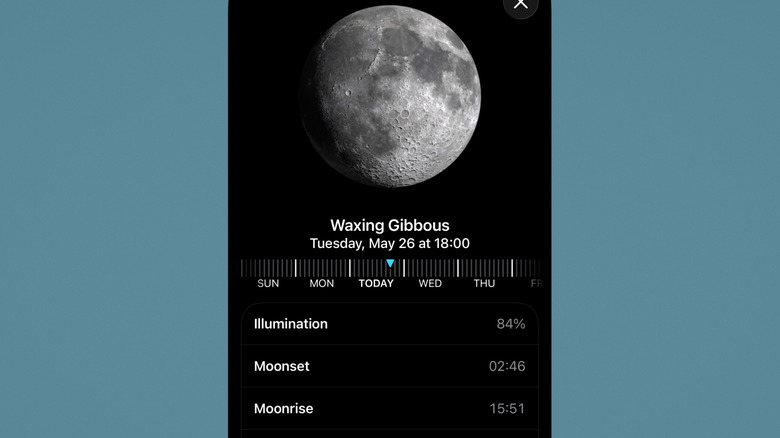
There are few things quite as majestic as a full moon on a quiet night. The problem is most of us only eyeball the moons waxing and waning, and as a result miss its best moments. The iPhone's Weather app has moon cycles baked in with all the detail a casual viewer could ever want.
Scroll down on the overview for a location and tap the moon section. You'll be surprised just how much information there is here, from the current moon phase and details on its illumination percentage, to moonset and moonrise and its distance from Earth. Scroll down a little more, and you'll find a moon calendar with dates for new moons and full moons, plus a scientific explainer for what exactly "moon illumination" means and why moon distance can vary so much.
Equally useful is the sunrise and sunset data, which you can also tap on in the overview to see more info. You can see exact times for sunrises and sunsets to plan for the upcoming ones, or see the ones you missed. Below that, you'll find sunrise and sunset time averages and average total daylight hours throughout the year. Although there's no way to have the weather app notify you when sunrise or sunset is approaching, you can add a sunrise/sunset widget to your Home Screen. If you have an Apple Watch, you can set sunset and sunrise as a complication.
Find more information in the overview
 Jordan Wirth/SlashGear
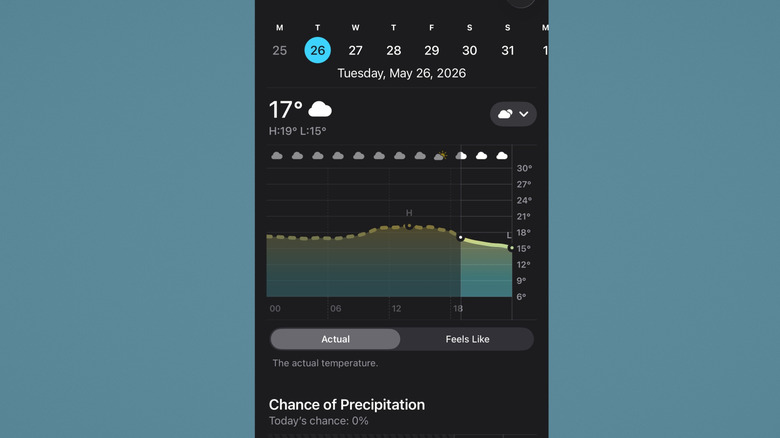
We'd wager that when most people use the weather app, they just glance at the location overview and then leave it at that. Huge shame, since there's a dragon's hoard of information there that takes only a single tap to access. To see what we're talking about, tap on the weather conditionbox. Here, you'll find detailed forecast graphs and comparisons of "actual" and "feels like" temperature, precipitation chances and totals (measured in millimeters), a forecast summarized in plain English describing the day's weather, and more. And that's just the first box!
It's the same story throughout the entire overview. Tap the precipitation box to see a moving time-lapse of predicted storm patterns; Tap UV index to see how much exposure you'll be getting throughout the day or week; Tap the wind box to see wind speed, direction, and an animated wind map. We could keep going, but you get the point.
What's unfortunate is that Apple doesn't really advertise the full depth of information hidden in the Weather app. Many get pulled into expensive subscription-based weather apps, thinking that's the only way to find an ad-free, comprehensive breakdown, but in reality, any Apple user already has an entire weather station at their fingertips.